


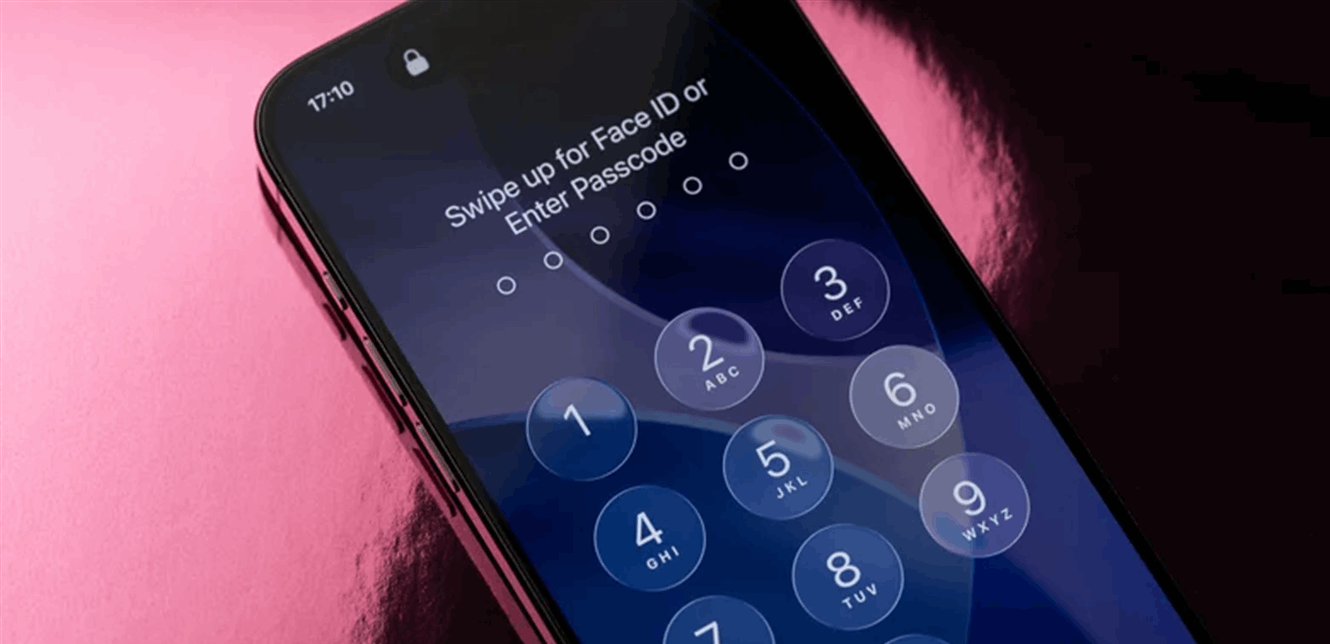
Forgetting the passcode on iPhones is a frustrating and familiar experience for many. It can happen due to a simple oversight, children playing with the phone, or even changing the passcode and then forgetting it immediately. Suddenly, a warning message appears stating “Too many passcode attempts,” and Face ID stops working once the device is restarted, making your phone practically unusable.
With iOS 17, there might be a slight chance to salvage the situation if you’re lucky, but in most cases, the only solution is to resort to “Recovery Mode,” which restores the device to its original state… and erases all the data on it, unless you have a backup.
First: Did you change your passcode less than 72 hours ago?
If your device is running iOS 17 or later, and you changed your passcode within the last 72 hours, your phone might allow you to use the old passcode to unlock the device again.
Otherwise, Face ID or any other solution won’t help: you’ll need to erase the device.
Recovery Mode Erases Everything
“Recovery Mode” is the official method provided by Apple to rescue your device when it’s locked, but this method comes at a significant cost, as all the data on the phone is deleted, and then iOS is reinstalled from scratch.
Therefore, there’s no point in using this method if you don’t have a recent backup on iCloud or on your computer.
If you’re sure you have a backup, you can proceed.
Method 1: Erase and Reset Directly from iPhone (iOS 17 and later)
On modern devices running iOS 17:
Try entering the passcode several times until you see the screen: “iPhone Unavailable.”
At the bottom of the screen, tap on the “Forgot Passcode?” option.
Choose “Start iPhone Reset.”
Enter your Apple ID password to sign out of the account on the device.
Confirm the “Erase iPhone” option.
Once finished, the phone will restart as a new device, and then you can choose to restore a backup from iCloud or from your computer.
This method doesn’t require a computer, but it relies on you remembering your Apple ID password.
Method 2: Using a Computer and Classic Recovery Mode
If you don’t see the erase options on the phone, or your operating system is older:
Connect the iPhone to the computer using a USB cable.
If you have a Mac running macOS Catalina or later: Open Finder.
If you have a Mac running macOS Mojave or earlier: Use iTunes.
If you’re using Windows: Use the Apple Devices app (or iTunes in older versions).
Put the phone into Recovery Mode (the method varies depending on the phone model):
iPhone 8 and later / iPhone SE (2nd generation and later): Quickly press the volume up button, then the volume down button, then press and hold the side button until the recovery mode screen appears.
iPhone 7 and 7 Plus: Press and hold the top or side button with the volume down button at the same time until the recovery mode screen appears.
iPhone 6s, SE (1st generation) and earlier: Press and hold the home button with the top or side button until the recovery mode screen appears.
On the computer, a window will appear stating that there is a problem with the iPhone and offering you two options: “Update” or “Restore.”
First, try the “Update” option to reinstall the system without erasing data (if possible).
If that fails, or the lock persists, choose “Restore” to completely erase the phone and reinstall iOS.
After finishing, the phone will work as a new device… and here you can:
Set up the iPhone from scratch, or restore a backup from iCloud or from your computer. (BGR)